 Simple Pay Application
Schedule of Values Template for Excel and CSV
A schedule of values template is a sheet with one row per line of work and two or three columns: an optional item number, a description and an amount. The amounts add up to the contract sum, and the sheet pastes into the app straight from Excel or uploads as a CSV file.
This page lists the columns, shows a filled template for one drywall job, and walks through the paste and the upload. It also lists what the app skips on its own and what it stops on, so a sheet that is a little untidy still goes in.
The columns an SOV needs
The app reads two layouts. With two columns the first is the description and the second the amount. With three the first is an item number, the second the description and the third the amount. More than three columns is refused, and the message names the row.
| Column | Needed | What goes in it | How the app reads it |
|---|---|---|---|
| Item number | No | A line number or a cost code from your own books | Only in the three-column layout; the lines are numbered in the order they come |
| Description | Yes | The work the line stands for, in words the GC will recognize on site | Extra spaces are collapsed; a description of more than 300 characters is refused |
| Amount | Yes | The scheduled value, in dollars and cents | A dollar sign and commas are fine; more than two decimals is refused |
Nothing else belongs in the sheet. Percent complete, work this period and retainage are not columns of the schedule: they are figured later, on the continuation sheet, from the lines you paste here.
A filled template for one job
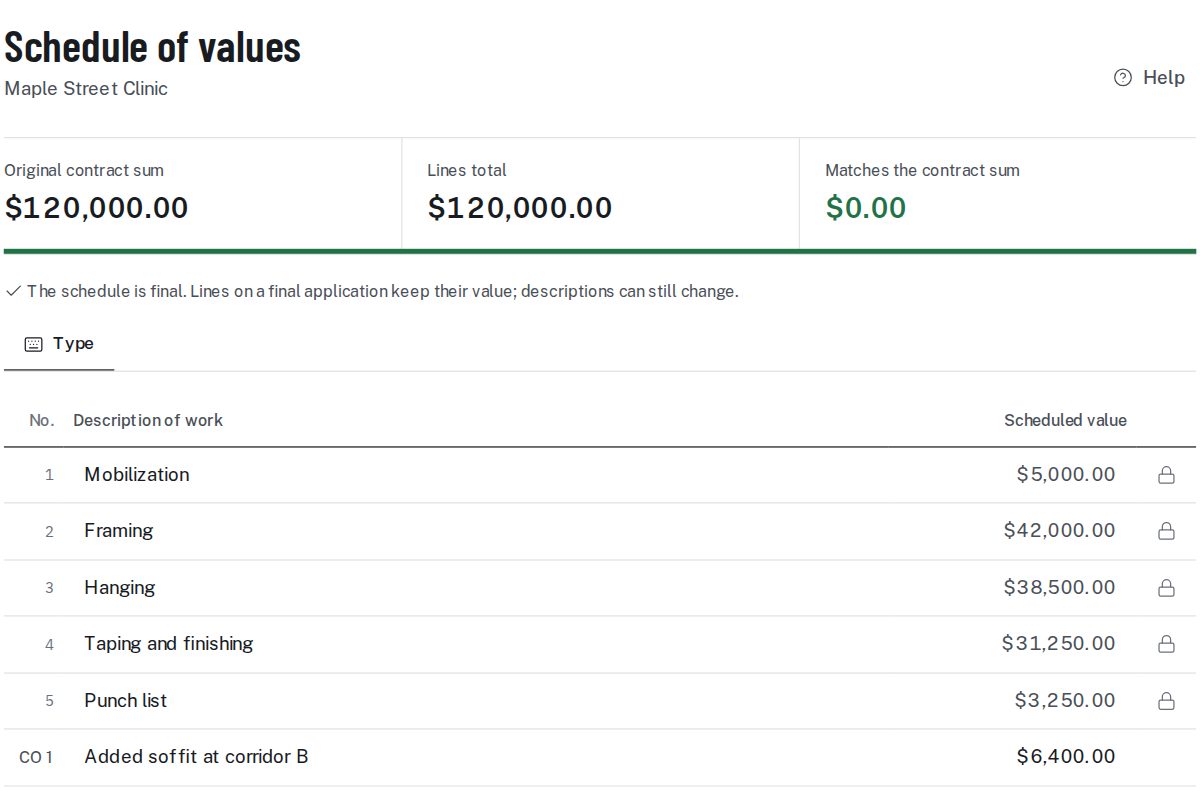
A drywall sub has a $120,000 contract. Its sheet uses the three-column layout, with a heading row at the top and a total row at the bottom.
| Item | Description | Amount |
|---|---|---|
| 1 | Mobilization | 5,000.00 |
| 2 | Framing | 42,000.00 |
| 3 | Hanging | 38,500.00 |
| 4 | Taping and finishing | 31,250.00 |
| 5 | Punch list | 3,250.00 |
| Total | 120,000.00 |
Check the sheet before copying it. $5,000.00, $42,000.00, $38,500.00, $31,250.00 and $3,250.00 come to $120,000.00, which is the contract sum, so the difference is $0.00. The heading row is skipped because its amount cell, the word Amount, is not a number. The total row is read as the total of the lines above it and is not added as a line, because it matches them.
Pasting from Excel
- Enter the original contract sum when you set up the project.
- In Excel, select the item, description and amount cells, or the description and amount cells alone.
- Copy them and paste into the box on the schedule screen.
- Read the lines total and the difference from the contract sum.
- If the paste saves, the project moves to its last setup check before the first pay app.
Excel copies cells with a tab between columns, and the app takes tabs first when it finds them. The first row can be the headings and the last a total. Rows with nothing in them are ignored.
Uploading a CSV
Save the sheet as CSV UTF-8 from Excel's Save As, then choose the file on the upload tab of the schedule screen. The upload tab also has a blank CSV template to download, for a sheet started from nothing. The delimiter is found by the app: tabs if there are any, otherwise commas, and semicolons when the first row has more of them than commas, as in European exports.
The file is read as UTF-8, with or without a byte-order mark, and failing that as Windows-1252, which is what Excel's plain CSV option writes on Windows. A file that is not text, for example a workbook renamed to .csv, is refused with a note on how to save it. The file can be up to 1 MB and the schedule up to 500 lines.
How the amounts are read
| In the cell | Read as |
|---|---|
| $12,500.00 | 12,500.00 |
| 12500.5 | 12,500.50 |
| 12,500.555 | Refused: more than two decimals |
| (4,000) | Refused on an original line: it reads as negative, and a credit goes in as a change order |
| TBD | Refused with the row number: it is not an amount |
Amounts that Excel shows rounded are the ones to watch. A cell showing 5,864.20 may hold 5,864.195, and the sheet then adds to something different from what is on screen. Rounding the cells to the cent before copying keeps the sheet and the app in step.
What the app skips and what it stops on
| In the sheet | What the app does |
|---|---|
| A title in one cell above the data | Skips it and says so |
| One heading row | Skips it when its amount cell is not a number |
| A closing row named Total, Totals, Grand total or Contract sum | Checks it against the lines above and drops it; if the two differ, stops and shows both figures |
| A subtotal row in the middle | Reads it as a line of work, so the lines total runs over the contract sum |
| A row with an empty description | Stops and names the row |
| A row with a single cell, after the data starts | Stops and names the row |
| More than 500 lines | Stops and gives the count |
The messages are in plain words with a row number, up to twelve at a time, so a sheet with several slips is fixed in one pass. A subtotal in the middle is the usual trap, since only a closing total row is recognized. Take subtotals out of the sheet before copying it.
What the paste does to the schedule
The pasted lines replace the original lines of the schedule, and only if their total equals the original contract sum. When it does not, nothing is saved and the page says how far the lines are from the contract sum, for example $500.00 short or $0.02 over. Correct the sheet and paste again, or correct the contract sum in the first step of the project.
A schedule that is already on a finished pay app cannot be replaced this way. The value of a billed line stays as it was, and later changes go in as change orders. A change order signed by both parties becomes its own line from the next pay app, and a deduction is a negative line. Sample schedules for seven trades are in the schedule of values examples.
The pay app as a whole, summary lines included, is covered on the pay app template page. This page stops at the schedule.
Schedule of values template questions
What columns does the schedule of values template need?
A description and an amount, with an optional item number in front. Two or three columns are read; more than three is refused with the row number.
Can I leave the heading row and the total row in the sheet?
Yes. One heading row at the top is skipped when its amount cell is not a number, and a closing row named Total is checked against the lines above and left out.
Does the app give me a template to download?
The upload tab of the schedule screen has a blank CSV template. The pay app template page covers the pay app as a whole.
What if the pasted total is not the contract sum?
Nothing is saved. The page says how many dollars short or over the lines are, and you correct the sheet or the contract sum and try again.
How do I enter a credit or a change order?
Not in the pasted sheet. An original line cannot be negative, and a change order signed by both parties goes in on its own screen as a line from the next pay app.
Can I paste again after the first pay app?
Not once the schedule is on a finished pay app. A billed line keeps its value, and changes from then on go in as change orders.
Which file formats does the upload take?
CSV text, saved as CSV UTF-8 or as plain CSV from Excel on Windows, up to 1 MB and 500 lines. A workbook saved as .xlsx is not read; copy the cells and paste them instead.
Sources: FAR 52.232-5, Payments under Fixed-Price Construction Contracts.
Related guides
The schedule of values guide explains how a contract sum is split and why the lines tie out. After the schedule, the first pay application bills these lines.